Contents
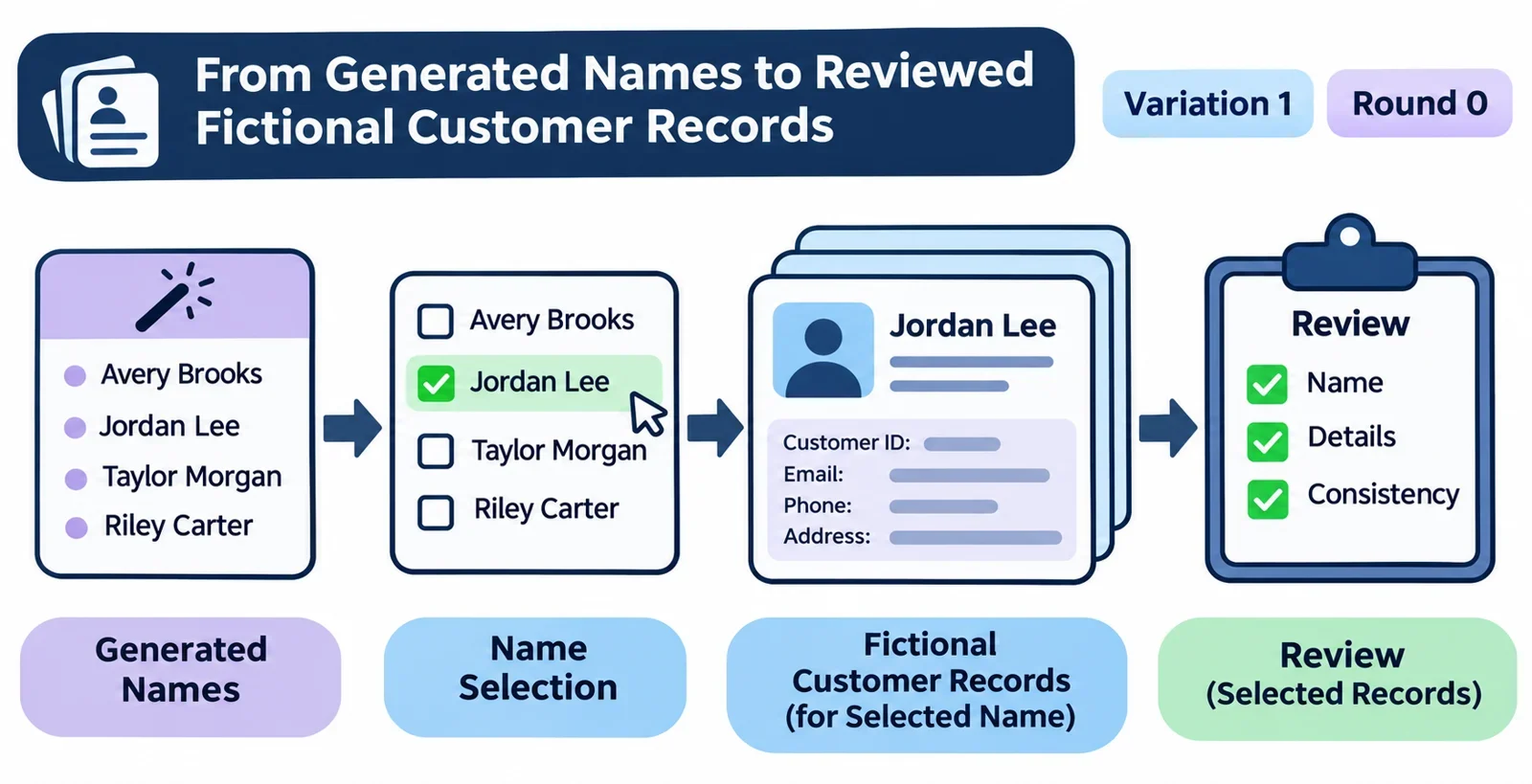
To build useful sample customer records, start with the task you want to show, select names that fit the scenario, and add only the fictional details the task needs. Give each record a consistent identifier and check that the same person and account appear the same way wherever they are shown.
A generated name is only the beginning of a record. You will still need to decide what belongs in each field, create suitable contact details, connect related records, and review the finished set. The examples below show one way to do that while keeping the fictional nature of the data visible.
Define what the sample records need to demonstrate
Begin with the action someone will perform. A form demonstration may need a name and email address, while an import exercise may also need identifiers, column headings, and account links. A search test may need several records with similar names. Write down the intended action before deciding how much data to create.
Make a small field list and identify which values must relate to one another. For example, if a demonstration shows contacts belonging to accounts, decide whether each contact belongs to one account or whether the scenario needs multiple contacts at the same account. If it shows a household, decide whether shared surnames are relevant. Unrelated customers do not need matching surnames simply because they appear in the same sample.
Choose the record count to fit the task. A single record can illustrate a basic form; a small group makes it easier to show searching, sorting, or account relationships. Add more only when they help demonstrate a particular behavior. Agree on the expected file format and field names before preparing an import, and check the requirements of the system you intend to use.
Plan useful variation
List the cases the workflow should handle, such as a longer name, two contacts linked to one account, or an optional field left blank. Check the expected behavior for each case with the person responsible for the test. Keep an ordinary example alongside any unusual cases so readers can follow the basic workflow before examining the exceptions.
Generate and select customer names
Use a person-name generator to produce candidates, then review the output against your scenario. If the generator offers language or name-format choices, select the options that suit the intended demonstration. Request enough candidates to give yourself a choice; if a batch option is available, it can make comparison convenient. The names alone do not supply the rest of a customer record.
For a customer list, select names that are distinct enough to follow on screen. If you are testing search or duplicate handling, deliberately include a similar pair and record what the test is supposed to show. For a fictional household, choose a shared surname only if that relationship is part of the scenario. For business contacts, decide which people belong to each fictional account instead of assuming that matching surnames establish a relationship.
Review each candidate for clarity and context. Check that it fits the fields you intend to use and that you can present it appropriately to the audience. If a form separates given and family names, decide how each selected name will be entered; do not assume every name can be split in the same way. Where the workflow accepts a single full-name field, preserve the selected spelling there.
Generated names can coincide with real people’s names. One described generator combines local name data without looking up identities, but that does not prevent an incidental match. Treat your records as fictional examples, avoid adding real personal details, and apply any review appropriate to where the examples will appear. A fictional label helps explain the scenario; it does not prove that every possible combination is unique.
Build complete fictional records
Once you have selected names, add the fields required by your scenario. Assign each customer a distinct sample identifier, then create fictional contact details and account references where needed. Keep a working table so that every value has a clear home before you copy it into a form, file, or demonstration.
The following set is fictional and illustrates two contacts at one fictional account and one contact at another. The identifiers and account labels are sample values; use the field names and formats required by your own workflow.
| Customer ID | Name | Fictional account | |
|---|---|---|---|
| CUST-001 | Mara Bell | [email protected] | Northwind Sample Account |
| CUST-002 | Ivo Chen | [email protected] | Northwind Sample Account |
| CUST-003 | Lena Ortiz | [email protected] | Harbor Sample Account |
The addresses use example.com, example.net, and example.org, which are described for fictional email examples. Choose addresses that fit your demonstration and make their purpose clear to anyone handling the data. If a test would send messages or perform another external action, first confirm how that action will be controlled in the intended environment; do not assume an example address makes sending harmless.
Keep fields purposeful
Add a phone, address, status, or other field only if it helps the task, and use values accepted by the intended test environment. For a required field whose acceptable format is unclear, check the form or import requirements before filling it. For an optional field, leaving it blank can be a useful case when the workflow is meant to handle blanks.
Label the dataset and, where appropriate, the demonstration as fictional. Keep the sample data separate from real customer information in the way your organization or test environment requires. Even when a fake-data service describes assembled records as unrelated to real people, incidental matches can still occur, so review the complete combinations as well as the names.
Keep related records and demonstrations consistent
Choose one working table as the reference for your fictional set. When Mara appears in a customer list, account view, and later demonstration capture, use the same name, customer ID, email, and account relationship unless a change to one of those values is the point being demonstrated. This makes it easier for an audience to follow the person through the workflow and easier for a tester to spot an unexpected change.
Give accounts their own stable sample identifiers if the workflow needs them. In the example above, both Mara and Ivo belong to Northwind Sample Account, while Lena belongs to Harbor Sample Account. If the destination uses a field called ServiceAccount to link a contact to an account, enter the intended account there in the format that destination expects. Confirm the required field name and value format for your own system before importing.
Prepare for repeat work
Save the selected records and a short description of the scenario in an appropriate location. Note any relevant generator choices that were available and used, along with manual edits made after generation. Preserve the final names themselves: repeating a selection process should not be assumed to reproduce the same output.
Before updating a demonstration, check whether a changed name or account link appears in other views or files. Update the corresponding entries together, then review the sequence from the beginning. If a record is intentionally different in a later step, explain the change in the scenario so it is not mistaken for an inconsistency.
Check the samples before use
Review the finished set against the task you wrote down at the start. Look at the records as a person using the form or watching the demonstration would see them, then inspect the underlying table or file if one is involved. A concise check can catch problems that are hard to notice while creating individual rows.
- Check formats and completeness. Compare field names, required values, and file structure with the destination’s requirements. Confirm that intended blank or unusual values are deliberate.
- Check duplicates and links. Look for repeated identifiers and unintended duplicate records. Verify that every contact points to the intended account and that shared accounts appear consistently.
- Check the scenario. Ask whether the names and details fit the audience and whether the set covers the cases the workflow is meant to show. Remove distracting fields that do not help the exercise.
- Check every view. Follow each sample through the relevant screens, files, and planned captures. Compare spelling and identifiers with the working table, including after any edits.
- Check the environment. Confirm that the data is suitable for the intended test or demonstration and that any actions the workflow may trigger are controlled as intended. Inspect everything visible in a capture, not just the fictional customer records: other real information may still appear.
If a check fails, revise the working table first, update the affected views or files, and repeat the relevant checks. For a shared demonstration, give the reviewer the scenario and expected relationships so they can verify what the audience is supposed to see.